
Step 1
Create meaningful links
Reference another note in your content or add a connection through the note connection manager.
Visual knowledge management
Link notes with references or the connection manager, then explore those relationships in Weavernote’s interactive knowledge graph.
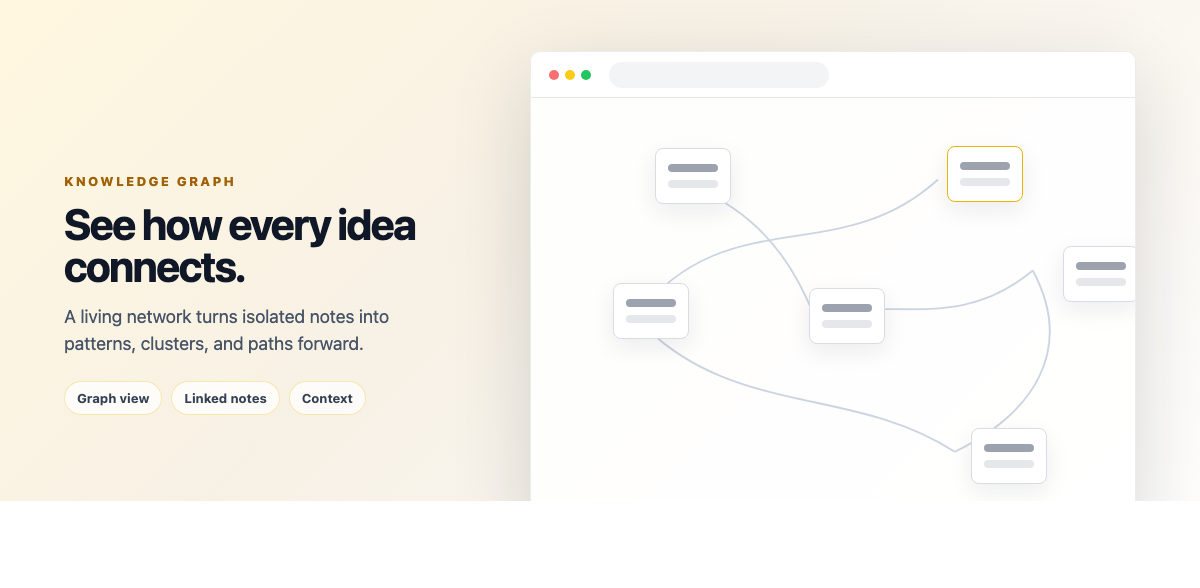
A folder tree is useful for filing. A graph gives you another way to explore links between ideas. In Weavernote, create note references or use the connection manager; linked notes can then appear together in the visualizer.
Step 1
Reference another note in your content or add a connection through the note connection manager.
Step 2
Explore the notes and links in a node-based view instead of moving only through a folder hierarchy.
Step 3
Pan, zoom, drag, and open notes from the graph to move between related material.
A practical look at the current workflow and where to check the details that matter.
The knowledge graph visualizes note links in your workspace. Add references or connections to define the relationships you want to explore.
No. The graph shows linked notes. Concept maps are a separate AI Studio output for visualizing a topic.
Yes. Select a note node to open that note from the visualizer.
The graph reflects the links in your workspace; it does not claim that every possible relationship has been inferred automatically.
Start with your own notes, then choose a Weavernote workflow that helps you organize, explore, or study them.
Get started with Weavernote