
Student workflow · 7 minute read
From a lecture recording to a study guide
A transcript is a useful starting point, but it is not yet a study plan. This walkthrough shows how to bring lecture material into Weavernote, organize the resulting note, and use selected course notes to create questions for review.
Published Jan 25, 2026 · Updated Sep 27, 2026
1. Choose one lecture source
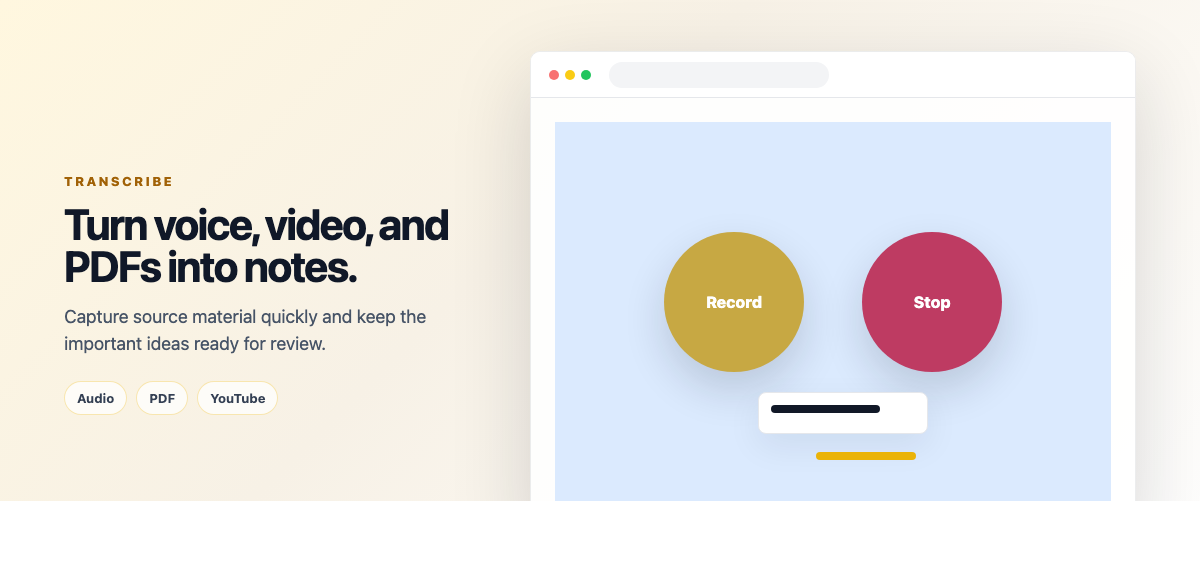
Start with material you are allowed to use for your study. In the note editor, the capture workflow can record from your microphone, accept an audio or PDF upload, or take a YouTube URL. Audio transcription includes automatic language detection and a language selector. The optional AI Smart Note setting can add a structured version for supported inputs.
Pick one source for this first pass. A single lecture or one chapter makes it easier to spot recognition mistakes and keep the resulting study material focused.
- Audio: record or upload supported audio, then choose the language if needed.
- PDF: submit the document for analysis. Check the resulting note against the relevant pages.
- YouTube: paste the video URL for transcription or analysis. If a video exceeds the service limit, the app may ask you to use a shorter source or paste its transcript.
2. Review and organize the source note
Processing creates a note in your workspace. Give it a useful title, such as Biology 204 — Ecosystems — Week 3, and place it in the notebook or folder you use for that course. Correct terminology, names, numbers, and negations while the original source is easy to check.
AI transcription and analysis can miss or change details, especially with overlapping speech, unfamiliar vocabulary, poor audio, or dense source material. Treat the resulting note as a draft; the recording, document, or course materials remain the authority.
3. Make a compact source note before generating questions
You can use the transcript directly, or edit it into a short set of points that keeps definitions, processes, examples, and exceptions together. For example, a class note on ecosystems might say:
Producers use energy to make organic matter. Consumers obtain energy by eating other organisms. Decomposers break down dead organisms and return nutrients to the environment.
This paragraph is written for this article. It is not a transcript or a result generated by Weavernote.
4. Select the relevant notes in AI Studio
Open AI Studio and select the note, notebook, or folder that contains the topic. Narrow selection is useful when you want questions about one lecture; a larger course selection can help when you want to review connections across several notes.
Then choose an output based on the kind of practice you need:
- Combined Flashcards creates an initial set of five question-and-answer cards. Try answering before revealing the back of each card.
- Knowledge Quiz creates practice questions from the selected material.
- Concept Map gives you a visual way to review a topic and its relationships. It is distinct from the knowledge graph, which shows links you create between notes.
5. Practice, check, and revise
For a flashcard, read the prompt and try to recall the answer before revealing it. For a quiz, choose an answer before checking the result. When a generated item is vague, combines several facts, or cannot be answered from your notes, revise the source note and generate another set.
Use the notes as the reference when an AI answer conflicts with class material. Generated study aids can omit context or state something incorrectly; they do not replace assigned readings, instructor guidance, or your own review.
Common questions
Can I use a PDF or a video instead of a recording?
The capture workflow includes PDF analysis and YouTube URL processing as well as microphone recording and supported audio uploads. The processing options differ by input type; check the result before using it as a source for study questions.
Can I generate material from more than one lecture?
Yes. AI Studio lets you select multiple notes, a notebook, or a folder for supported tools. Start with a small selection and expand it when you want to review a wider topic.
Are transcription minutes or AI tools unlimited?
Availability and limits depend on your plan and the operation. See the current plan comparison before processing a large set of recordings.
What should I know before using AI with class material?
AI features process the content you select. Read the Privacy page and avoid sending sensitive or confidential material to AI tools.
Continue the workflow
See the details for audio transcription and capture, AI flashcards, or the broader student study workflow. Each page describes a specific part of turning source material into something you can review.
Keep your original source available, review the generated note, and verify study answers before relying on them.